Pay With Your KAST Virtual Card Using Your Phone Wallet
Learn how to add your KAST virtual card to Apple Pay or Google Pay and start paying with your phone in minutes. Use contactless payments in stores without waiting for a physical card.


You finished KYC, set up your virtual card, and want to use it right away.
You do not need to wait for the physical card. If you are at a store and the terminal supports contactless payments, you can add your KAST virtual card to Apple Pay or Google Pay and pay with your phone.
It only takes a few minutes. You still manage everything in the app, and you can review your card details before you confirm.
What You Can Do
- Pay in stores with your phone at contactless terminals
- Add your virtual card to Apple Pay or Google Pay
- Start using your card before the physical one arrives
Why This Helps
Pay Without Carrying Your Card
You do not need to take out a wallet every time. Your phone is enough. Just unlock it and tap to pay where contactless payments are accepted.
Start Using Your Card Sooner
Once your virtual card is in your phone wallet, you can start using it straight away. That helps when you need to pay the same day.
Keep Control in the App
You still manage your card in the KAST app. You can check your details, view activity, and stay on top of how you pay from one place.
How It Works
If you want to add your virtual card to your phone wallet, you can do it directly from your phone wallet app. This works for both Apple Pay and Google Pay.
First, open the KAST app and go to your card details.
KAST → Cards → Your Virtual Card → Details
Tap to reveal your card number, expiry date, and CVV.
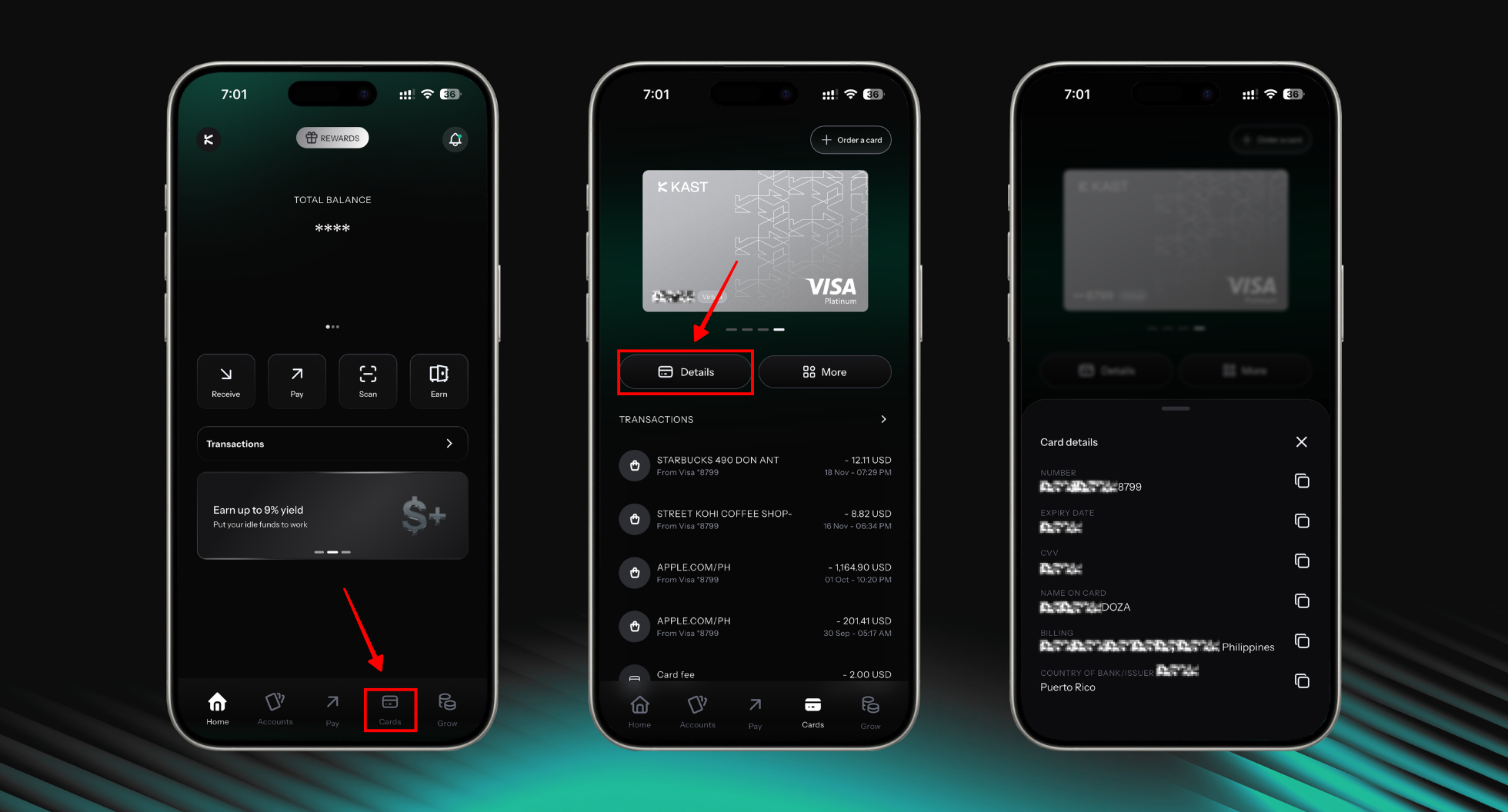
Now add the card to your phone wallet.
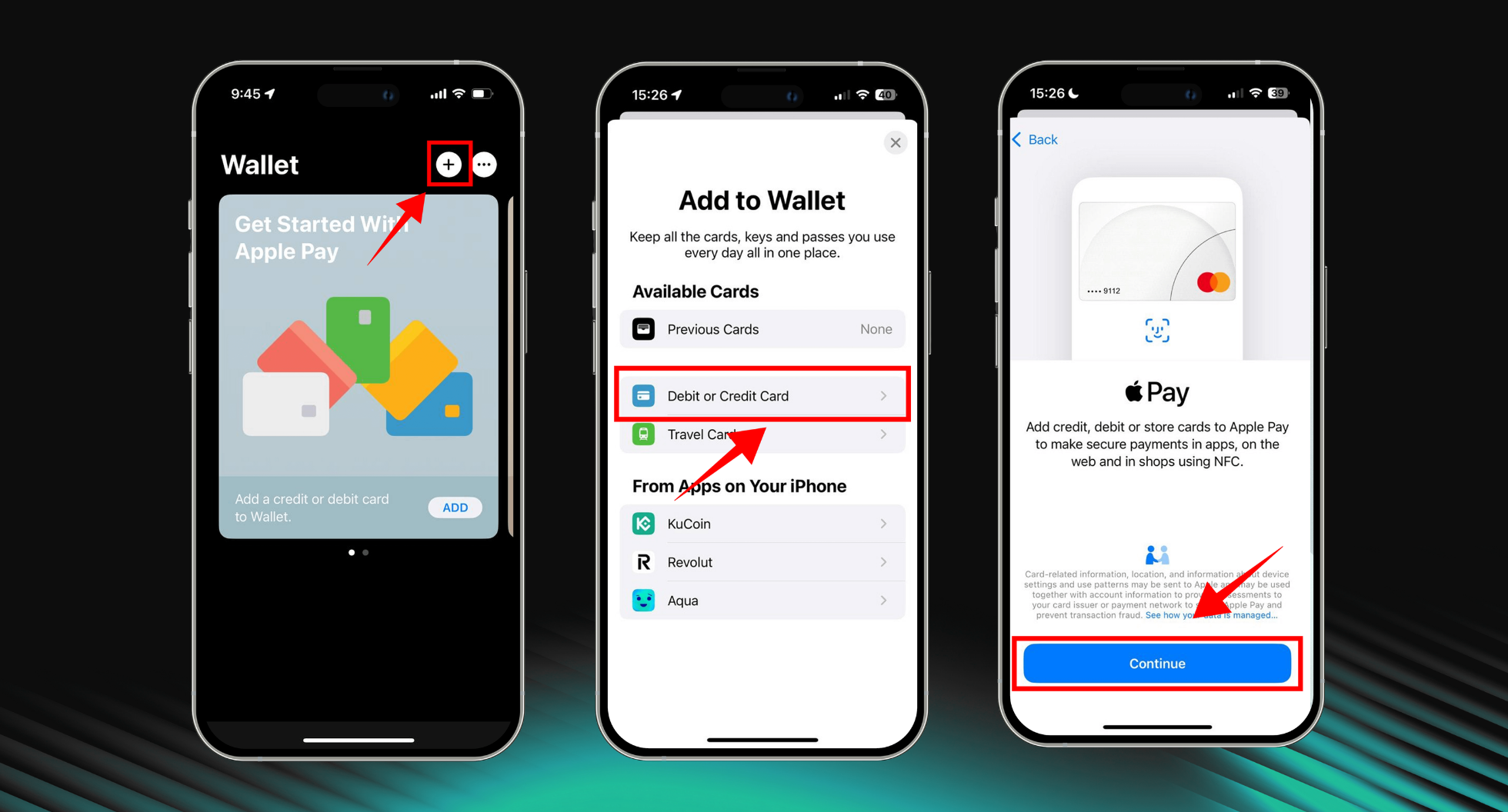
On iPhone (Apple Pay)
Open Apple Wallet → tap + → choose Debit or Credit Card → tap Continue.
Enter the card number, expiry date, and CVV exactly as shown in KAST.
Follow the on screen steps to verify your card by SMS or email.
After verification, your card is ready to use.
On Android (Google Pay)
Open Google Wallet → tap Add to Wallet → choose Payment card.
Enter the card number, expiry date, and CVV exactly as shown in KAST.
Follow the on screen steps to verify your card.
After verification, your card is ready to use.
Before you confirm, you can review your card details in the KAST app.
You see what you are adding before you proceed.
Alternatively, Use the In App Guide (Concierge)
If you prefer step by step guidance, you can open the guide from inside the KAST app:
KAST → Cards → Your Virtual Card → Details → More → Add to Apple Wallet
When you tap this, KAST opens Concierge.
There, you will see clear steps that show you how to add your card to your phone wallet.
Add your KAST card to Apple Pay now. Open the guide and follow the steps in minutes.
What It Costs
We show any applicable foreign exchange (FX) and card fees before you confirm.
You see the full quote in the app. You decide before you proceed.
Ready?
Add your virtual card to your phone wallet and pay with your phone today.
Disclaimer: This content is for general informational purposes only and does not constitute investment, legal, tax, or financial advice. Digital assets involve high risk and may result in total loss. Please do your own research and consult professional advisors before making any decisions. Read full disclaimer here.